Tips and Ways to Recover Files Affected by Ransomware and Prevent It from Happening Again
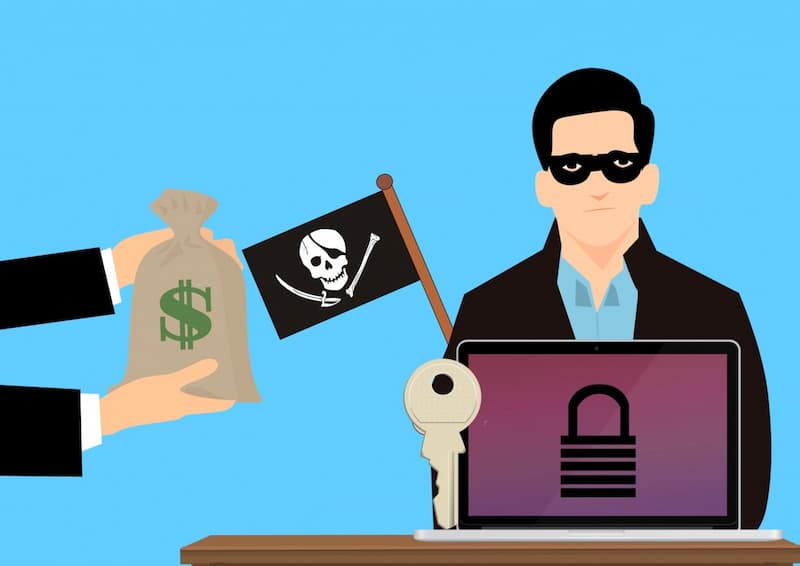
Ransomware attacks are the biggest nightmare for computer network owners. The impact of these attacks is no joke—they can even render your files inaccessible. If this happens, you need to know how to recover files affected by ransomware so you can access the important data on your computer.
How Do You Recover Files Affected by Ransomware?
Ransomware is a type of virus sent by hackers to lock a target’s device or computer files, making them inaccessible. Hackers demand a ransom if the victim wants to regain access to those files. This ransom demand appears in a Notepad file containing the ransom amount, a decryption code, and an email address to contact.
In short, ransomware is a form of virtual extortion. However, you don’t have to comply with their demands when this virus attacks your computer. There are actually many ways you can recover the files on your computer.
Try following one of the methods below to regain access to a computer infected with ransomware.
1. Use Windows Backup
First, try using the Windows Backup feature available on your computer. This feature is useful for restoring lost or deleted files. Follow the steps below to restore your files.
- Open “Control Panel” from the “Start” menu, then select “System and Security.”
- Select ‘Backup and Restore’, then click ‘Restore files from backup’.
2. Use File Recovery Software
This method can be an alternative if important data cannot be restored because you forgot to back it up, or it wasn’t backed up automatically. There are many file recovery software programs available online. Download one of these programs, then follow the instructions to recover files from a ransomware attack.
3. Remove the Virus with Antivirus Software
Antivirus software remains an effective tool for combating ransomware on your computer. Choose a trusted, reliable antivirus program that is capable of restoring data after a ransomware attack.
{{blogcard id=”167″}}
Using it is simple: just scan all files in the affected directory with this software. Enable safe mode and perform a deep scan so the antivirus can thoroughly scan your computer.
4. Disable Suspicious Items in Startup
Computers infected with viruses usually have items that have infiltrated the Windows startup menu. These items need to be disabled or removed so they don’t spread to your device. How do you do this?
- First, enable safe mode on your computer.
- Open the ‘Search’ icon, then type msconfig.exe.
- Select the ‘Startup’ tab, then uncheck the suspicious items. In the latest versions of Windows, the ‘Startup’ menu will redirect to Task Manager, so you’ll need to click ‘Open Task Manager’ first, then follow the steps above.
- When finished, click ‘Apply’, then ‘OK’.
5. Fix the Hosts File
Ransomware can attack several key parts of the Windows system. These attacks originate from the hosts file, so you’ll need to remove certain entries from that file. Follow the steps below:
- Make sure your computer is in Safe Mode.
- Open “File Explorer,” then navigate to “Local Disk (C:)” > Windows > System32 > driverset > hosts.
- Open the file with the .hosts extension using Notepad.
- Delete all lines of text that do not begin with a hash symbol (#).
- Save the file when you’re done.
6. Unhide Hidden Folders
Ransomware hides files or folders on your computer so they cannot be found. These files are usually hidden or classified as “unknown files.” You need to unhide them by following these steps:
- Click “Control Panel,” then type “File Explorer Options” in the search bar. Once the dialog box opens, select the “View” tab.
- Adjust the settings by clicking “Show hidden files, folders, and drives” located under the “Hidden files and folders” section.
- Click “Apply,” then click “OK.”
7. Use System Restore
System Restore works if you’ve previously set up a restore point on your computer. It will revert your entire Windows system to a state before your files were infected. First, make sure you’ve created a restore point, then follow the steps below:
- Open the ‘Control Panel’ menu, then select ‘Recovery’
- Select ‘Open System Restore’, then follow the on-screen instructions.
- Once finished, restart your computer, and your files will be restored to their original state.
8. Use Stop Decryptor
Stop Decryptor is an application designed to decrypt files encrypted by a ransomware attack. This decryption method is easier and more practical for restoring files affected by ransomware. Install this software on your computer, then follow the instructions below.
- Open the software. Ignore any attempts by your antivirus to block access to this application.
- Click “Select Directory,” then choose the folder containing the files affected by ransomware.
- Click “OK,” then click “Decrypt.”
- Wait for a notification indicating whether the files were successfully decrypted or not.
- If the decryption process fails, you can switch to another decryption tool, such as Emisoft Decryptor. It works in much the same way as Stop Decryptor.
How Can You Prevent Ransomware from Striking Again?
Even if you’ve successfully recovered your files from a ransomware attack, that doesn’t mean it won’t happen again in the future. Ransomware can strike suddenly, especially if your computer lacks security measures. You still need to take preventive steps to keep your computer and the data on it safe from ransomware.
Follow the steps below to secure your computer against ransomware and other cyberattacks.
1. Use the Latest Software
Computers that are rarely updated are more vulnerable to ransomware attacks. You should install software updates when prompted. Typically, update prompts appear when you’re about to shut down your computer.
Enable the “Windows Update” feature so your computer system continues to receive the latest patches and updates before updating, back up your data first to avoid data loss during the system update installation.
2. Run Regular Antivirus Scans
You can use either the built-in Windows antivirus software or a third-party application. Ensure your antivirus is up to date for optimal performance. Run regular scans so that ransomware can be detected early before it spreads to your computer network.
3. Avoid Suspicious Links
Be cautious when you receive spam emails containing links to click or requests to download files. Visit the VirusTotal website to verify the safety of such links.
4. Enable the Firewall
A firewall is a built-in feature of the Windows OS designed to protect your computer’s security. Enable this feature to keep your computer safe from any cyberattacks.
5. Enable the ‘Safe Browsing’ Feature
Always enable the ‘safe browsing’ feature in your browser when browsing the internet. This feature helps your browser detect websites that are unsafe to visit or have been compromised by viruses. Immediately leave the website if your browser displays a pop-up warning that the site is unsafe to visit.
6. Back Up Your Documents Regularly
Finally, you need to back up your important documents regularly. These backups make it easier to restore files if they become infected with a virus. Choose a reliable cloud-based storage method to ensure your data isn’t lost at any time.
The six methods above are useful for enhancing the security of your computer’s data against ransomware attacks. It’s not just about prevention—restoring files infected by a virus isn’t as simple as flipping a switch.
You can use the Cloudmatika Cyber Protection service if the methods in this article haven’t worked. No matter what file extensions the ransomware has changed, all files can be recovered with this software. Cyber Protection comes with cloud backup, so the data on your computer remains protected because it’s backed up regularly.
Want to learn more about this service? Contact Cloudmatika right now for a consultation.
In short, you need to use software to restore files affected by ransomware. Once the files have been successfully restored, you must also take preventive measures to ensure this doesn’t happen again.
Secure & Grow Your Business with Cloudmatika
Cyber threats and service disruptions can happen anytime, directly impacting your operations and customer trust.
Cloudmatika provides a complete cloud & cybersecurity solution — from WAF and Cyber Protection to Cloud Storage — to keep your business safe and running smoothly.
Talk to our team about your infrastructure needs today.